Web client
The web dashboard lets you manage projects and document types without writing code. Log in at app.helvetii.ai to get started.
Creating a project
Projects are the top-level container for organizing your document types. Each project has its own set of document types, schemas, and extraction routines.
-
1
Log in to the dashboard
Navigate to
app.helvetii.aiand sign in with your account credentials. Authentication is handled through Auth0. -
2
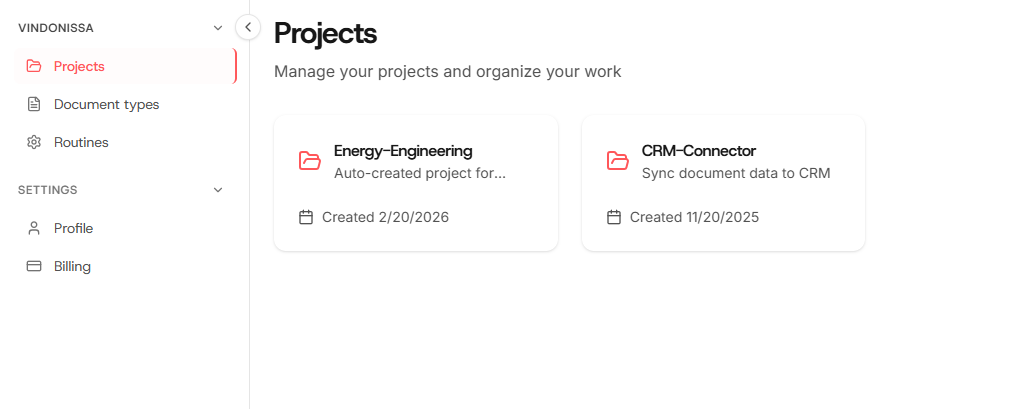
Navigate to Projects
Click Projects in the sidebar navigation. You'll see a list of your existing projects, or an empty state if this is your first time.
-
3
Click "New project"
A modal dialog opens with the project creation form.
-
4
Fill in project details
Enter the following fields:
nameAlphanumeric characters, hyphens, underscores, and dots. No spaces.descriptionA brief description of the project's purpose.Note
The project name is used as an identifier in API calls. Choose a descriptive, URL-safe name like
insurance-claimsorinvoice-processing.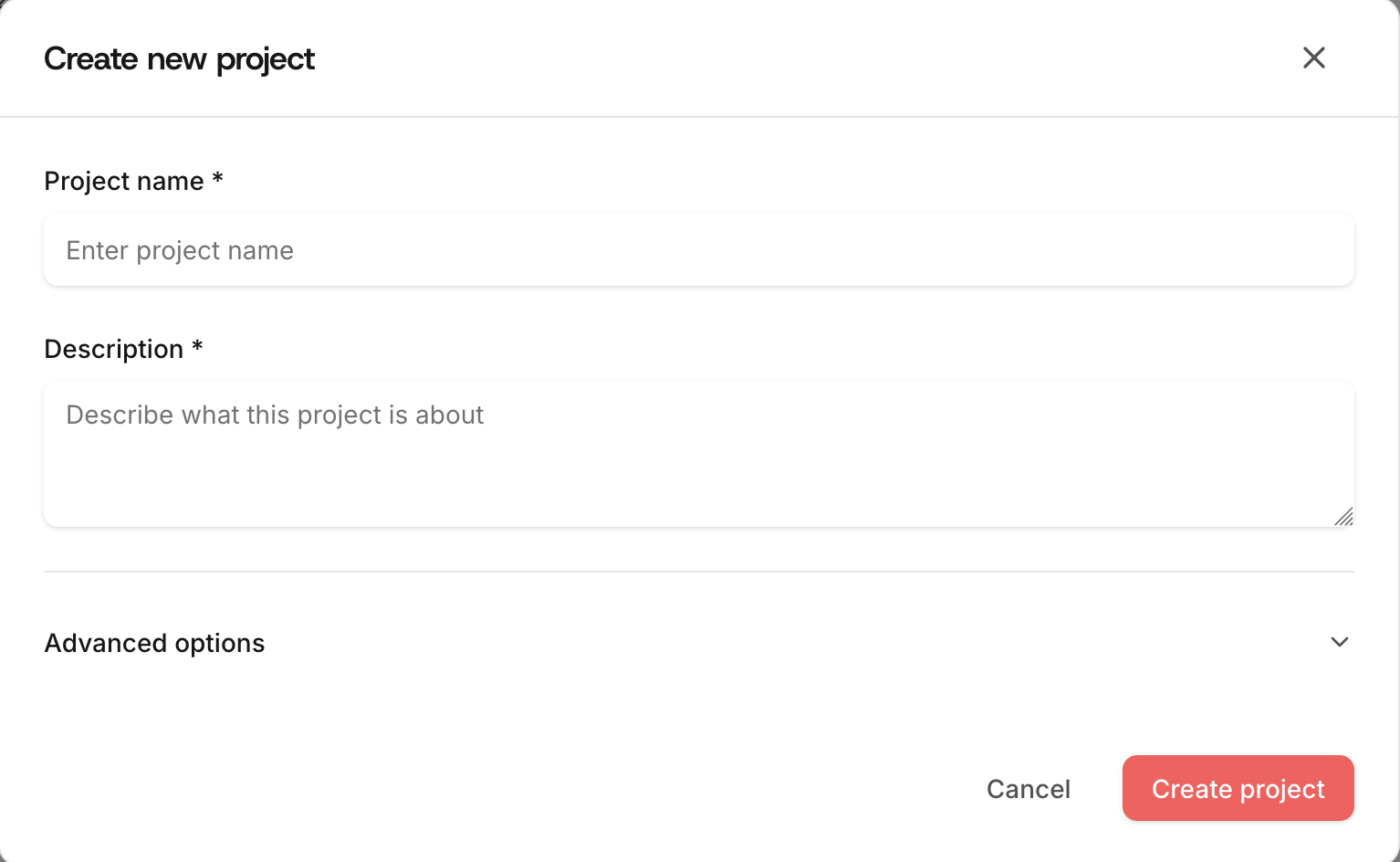
-
5
Submit
Click the submit button. The project is created and appears in your projects list. You can now add document types to it.
Creating a document type
Document types define the extraction schema for a category of documents within a project. Each document type specifies which fields to extract and how to validate the results.
-
1
Navigate to Document Types
Go to Document Types in the sidebar, or click Add document type from a project detail page.
-
2
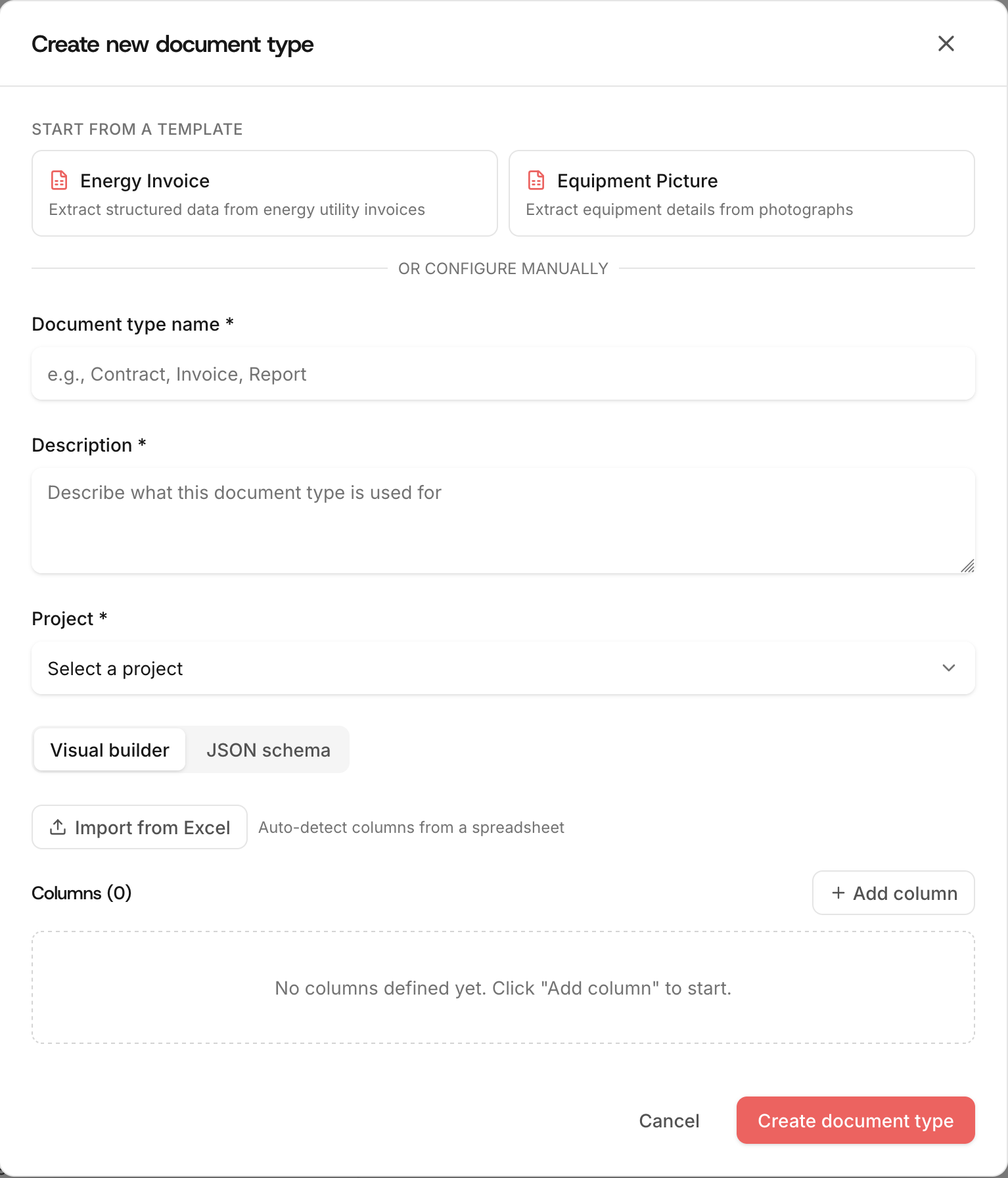
Click "New document type"
The creation modal opens. If you navigated from a project, the project field is pre-selected.
-
3
Enter name and description
The document type name follows the same rules as project names: alphanumeric, hyphens, underscores, dots. No spaces. Examples:
invoice,electricity-bill,claim-form. -
4
Define the extraction schema
The schema defines which fields the AI should extract from documents. Each field has a name, type, and description. The description guides the model on what to look for.
Example: invoice schema{ "invoice_number": { "type": "string", "description": "Unique invoice identifier" }, "date": { "type": "string", "description": "Invoice date in YYYY-MM-DD format" }, "vendor": { "type": "string", "description": "Vendor or supplier name" }, "total_amount": { "type": "number", "description": "Total amount including tax" }, "currency": { "type": "string", "description": "ISO 4217 currency code" }, "line_items": { "type": "array", "description": "List of invoice line items", "items": { "description": { "type": "string" }, "quantity": { "type": "number" }, "unit_price": { "type": "number" } } } }See schema best practices for guidance on writing descriptions that extract reliably.
-
5
Configure advanced options
Expand the Advanced options section to configure:
validation_rulesJSON array of business rules applied after extraction.field_importanceJSON object mapping field names to importance levels:critical,high,medium,low. -
6
Submit
The document type is created and linked to your project. You can now process documents against it using the API.